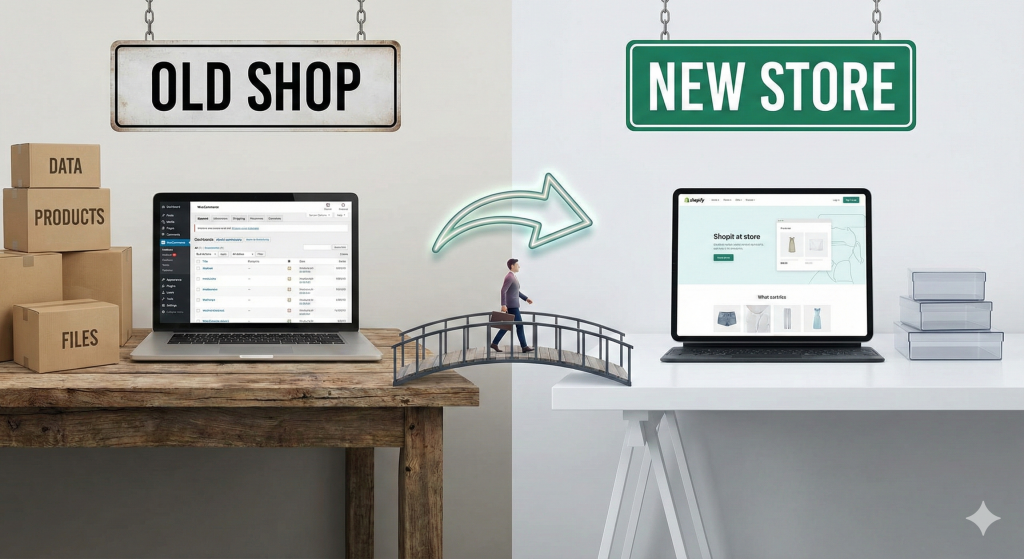
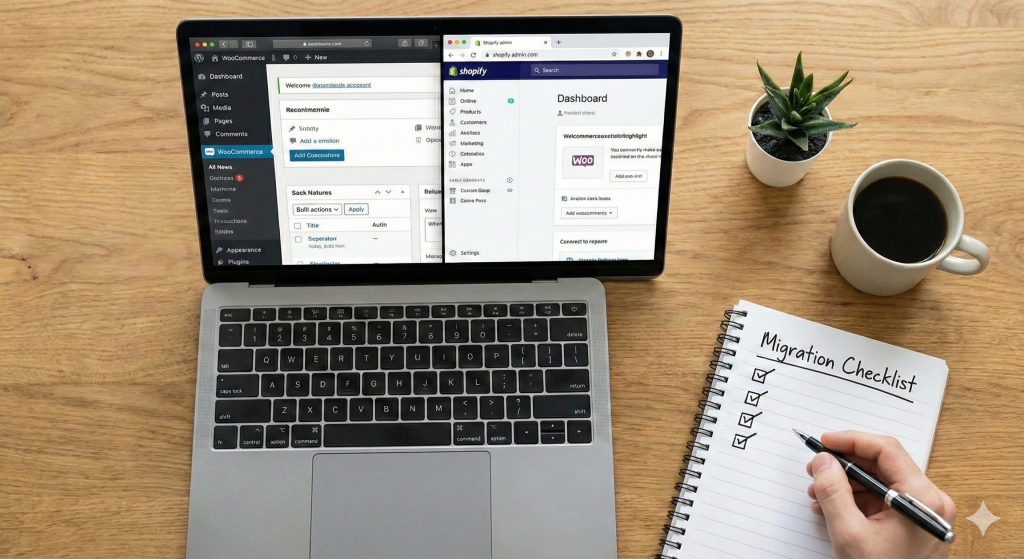
Embarking on a WooCommerce to Shopify migration is a significant step towards scaling your e-commerce business. While the benefits of moving to Shopify—enhanced performance, security, and streamlined operations—are compelling, the migration process itself is complex. A single missed step can lead to lost data, broken customer experiences, or a devastating drop in SEO rankings. Success lies in meticulous planning and execution.
This comprehensive checklist is designed to guide you through every critical phase of the migration. It breaks down the project into manageable stages, ensuring nothing falls through the cracks. By following this structured approach, you can transition your store smoothly and confidently, setting yourself up for a successful launch on your new platform. As a Shopify Partner with deep expertise in WordPress, we’ve refined this process to guarantee a seamless move.
Data Preparation
Your store’s data is its most valuable asset. Before you move anything, you need to ensure the data is clean, organised, and ready for its new home. A “garbage in, garbage out” approach will only create problems down the line.
☑ Clean Product Data
Go through your product catalogue with a fine-tooth comb. This is the perfect opportunity to standardise information. Check for consistent naming conventions, update outdated descriptions, and ensure all products have high-quality images. Remove any old, disabled, or test products that you no longer need.
☑ Remove Old SKUs
Over time, your SKU system can become cluttered. Archive or remove SKUs for products that have been permanently discontinued. A clean SKU list simplifies inventory management and prevents errors during data import.
☑ Merge Duplicate Customers
It is common for duplicate customer accounts to appear in WooCommerce. Identify any customers with multiple accounts (often due to typos in email addresses) and merge them into a single profile. This ensures a clean customer list in Shopify and prevents confusion for your shoppers.
Design & UX
Your store’s design is not just about looking good; it is about creating an intuitive and frictionless shopping experience for your customers. When you migrate from WooCommerce to Shopify, you need to rebuild your front-end experience to align with your brand and optimise for conversions.
☑ Choose a Mobile-First Theme
The majority of e-commerce traffic now comes from mobile devices. Select a Shopify theme that is specifically designed with a mobile-first approach. Test the theme’s demo on your phone to ensure the navigation, product pages, and checkout are easy to use on a small screen.
☑ Recreate Your Navigation
Plan your new site’s main menu and footer navigation. Aim for a simple, logical structure that helps customers find what they are looking for quickly. Make sure all your key pages, such as “About Us,” “Contact,” and your shipping policy, are easy to access.
☑ Set Up the Checkout
Shopify’s checkout is highly optimised, but you can still customise it to match your brand. Add your logo, adjust the colours, and configure your checkout settings. This is also the time to set up abandoned cart recovery emails to capture potentially lost sales.
SEO Tasks
An SEO-focused migration is non-negotiable. Failing to protect your search engine rankings is one of the costliest mistakes you can make when you migrate from WooCommerce to Shopify. This phase is dedicated to ensuring a seamless transition in the eyes of Google.
☑ Complete URL Mapping
WooCommerce and Shopify have different URL structures. You must create a comprehensive spreadsheet that maps every single old URL from your WooCommerce site to its new equivalent on Shopify. This includes products, collections (categories), pages, and blog posts.
☑ Migrate All Metadata
Ensure that all your SEO metadata—specifically meta titles and meta descriptions—is transferred correctly. This information is crucial for your click-through rate from search results. Use your URL map to check that the metadata for each corresponding page has been migrated.
☑ Check Image Alt Text
Image alt text helps search engines understand what your product images depict and is a key factor in image search rankings. Verify that the alt text from your WooCommerce images has been carried over to Shopify.
☑ Implement and Test Redirects
Using your URL map, implement 301 redirects. These tell search engines that a page has moved permanently, passing along its SEO authority. You can use a Shopify app to bulk-upload redirects from a CSV file. After implementation, spot-check dozens of old URLs to ensure they redirect correctly to the new pages.
Technical Setup
This phase involves configuring the backend of your Shopify store to handle the core business operations of selling, shipping, and communicating with customers.
☑ Configure Payment Gateways
Activate Shopify Payments or connect your preferred third-party payment provider (like PayPal or Stripe). Run a test transaction with a real credit card to ensure that payments are processed correctly and funds are deposited into your account.
☑ Define Shipping Rules
Set up your shipping zones, rates, and rules. Whether you offer free shipping, flat rates, or real-time carrier rates, configure everything accurately. This prevents shipping-related confusion for customers and protects your profit margins.
☑ Finalise Tax Settings
E-commerce tax can be complex. Use Shopify’s tax engine to set up tax collection rules based on your business location and where you sell. If you have complex needs, you may need a dedicated tax app. It is always best to consult with a tax professional to ensure compliance.
☑ Customise Email Notifications
Shopify sends automated emails for events like order confirmations, shipping updates, and password resets. Customise these templates to match your brand’s voice and visual identity. This creates a cohesive brand experience from purchase to delivery.
QA (Quality Assurance) Testing
Before you go live, you must rigorously test every aspect of your new store. The goal is to catch any bugs or issues before your customers do.
☑ Place Multiple Test Orders
Simulate the customer journey from start to finish. Place several test orders using different payment methods. Test the checkout process, apply discount codes, and check that the order confirmation emails are sent correctly.
☑ Test Customer Login
Because customer passwords cannot be migrated, you will need to invite your customers to create a new password. Test this process. Ensure customers can easily request a password reset and access their account details, including their order history.
☑ Verify Discount Codes and Apps
If you use discount codes, create a few test codes and ensure they apply correctly at checkout. Test the functionality of all installed Shopify apps. For example, if you have a loyalty app, check that points are awarded correctly on a test purchase.
☑ Check Analytics Tracking
Make sure your analytics tools, like Google Analytics and the Meta Pixel, are correctly installed and tracking data. You should see your test visits and transactions appear in your analytics dashboards.
Go-Live Strategy
Launch day is the culmination of all your hard work. A clear go-live strategy ensures a smooth and controlled transition from your old site to the new one.
☑ Point Your DNS
When you are ready to launch, you will need to update your domain’s DNS records to point to Shopify’s servers. This is the moment your new Shopify store becomes live to the public.
☑ Submit Sitemap & Monitor for Crawl Errors
Once the site is live, submit your new sitemap.xml file to Google Search Console. This encourages Google to crawl your new site structure. In the days following launch, keep a close eye on the “Coverage” report in Search Console to identify and fix any 404 errors or other crawling issues.
☑ Monitor Performance
Keep a close watch on your store’s performance, analytics, and sales in the first few weeks after launch. Be prepared to address any unexpected issues quickly.
Following this checklist will dramatically increase your chances of a successful and stress-free WooCommerce to Shopify migration. For extra peace of mind and expert execution, consider downloading our detailed guide.