
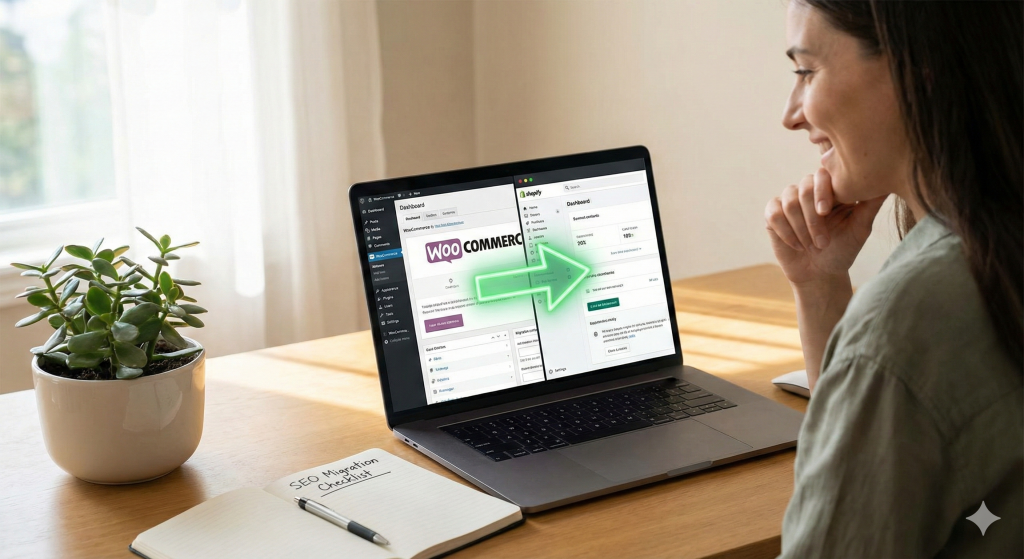
You have decided to migrate from WooCommerce to Shopify to take advantage of its robust infrastructure, security, and scalability. It is an exciting step forward for your e-commerce business. However, amidst the planning for data transfer and new theme designs, there is a critical element that often gets overlooked: your search engine optimisation (SEO). A poorly executed platform migration can undo years of hard work, causing your search rankings to plummet and organic traffic to disappear almost overnight.
The good news is that this is entirely avoidable. Preserving your SEO during a WooCommerce to Shopify migration is not about luck; it is about following a precise and methodical process. This guide will walk you through the essential steps to protect your search visibility, ensuring your move to Shopify is a launchpad for growth, not a step backwards. As a Shopify Partner with deep roots in WordPress development, we have managed this exact process for countless businesses, safeguarding their most valuable marketing asset.
Why SEO Drops During Poor Migrations
When Google’s crawlers revisit your site after a migration and find chaos, your rankings suffer. Understanding the common pitfalls is the first step in preventing them. A drop in SEO is almost always traced back to a few key technical errors.
- Broken URLs: This is the number one cause of post-migration SEO disaster. If you do not redirect your old WooCommerce URLs to their new Shopify equivalents, any user or search engine crawler clicking an old link will land on a “404 Not Found” error page. This signals to Google that your content is gone, and the authority of those pages is lost.
- Duplicate Content: Sometimes, both your old WooCommerce site and new Shopify site can be live simultaneously on different domains or subdomains without proper instructions for search engines. This can lead to duplicate content issues, where Google doesn’t know which version to rank, diluting your SEO authority.
- Missing Meta Data: Meta titles and descriptions are crucial SEO signals that tell search engines what your pages are about. If this data is not transferred correctly during the migration, your pages may lose their relevance for target keywords, causing rankings to drop.
- Redirect Chains: A sloppy redirect plan can create redirect chains (e.g., Page A redirects to Page B, which then redirects to Page C). This slows down site speed for users and makes it harder for search engine crawlers to index your site efficiently, which can negatively impact your SEO performance.
WooCommerce vs Shopify URL Structure
A core challenge in a WooCommerce to Shopify migration is that the two platforms generate different URL structures by default. You cannot simply copy and paste your links.
- Product URLs:
- WooCommerce: Often flexible. A typical structure might be
yourstore.com/product/product-name/. - Shopify: Standardised. The structure is always
yourstore.com/products/product-name. Notice the mandatory/products/folder.
- WooCommerce: Often flexible. A typical structure might be
- Category URLs (Collections):
- WooCommerce: Typically
yourstore.com/product-category/category-name/. - Shopify: Uses “collections” instead of “categories.” The URL is always
yourstore.com/collections/collection-name.
- WooCommerce: Typically
- Blog URLs:
- WooCommerce: Very flexible, but often
yourstore.com/blog/post-name/. - Shopify: Structured as
yourstore.com/blogs/blog-name/article-name.
- WooCommerce: Very flexible, but often
Recognising these differences is fundamental to planning a successful SEO migration. You must map every old URL to its new Shopify counterpart.
Creating a Proper Redirect Map
A redirect map is your single most important tool for preserving SEO. It is a spreadsheet that lists every URL on your old WooCommerce site in one column and its corresponding new Shopify URL in another. This map will be used to implement 301 redirects, which permanently tell browsers and search engines that a page has moved.
- Export All WooCommerce URLs: The first step is to get a complete list of every indexable URL on your current site. You can use a crawling tool like Screaming Frog or a WordPress plugin designed for exporting URLs to generate this list. Be sure to include products, categories, pages, and blog posts.
- Match to New Shopify URLs: In your spreadsheet, create a second column. For each WooCommerce URL, manually determine its new Shopify equivalent based on the structure differences noted earlier. For example,
yourstore.com/product/blue-widget/will map toyourstore.com/products/blue-widget. This is meticulous work but absolutely essential. - Implement Bulk 301 Redirects: Once your map is complete, you can implement the redirects. Shopify has a built-in “URL Redirects” feature where you can add redirects one by one. For a large site, this is impractical. Instead, you can use a Shopify app that allows for the bulk import of redirects from a CSV file. This allows you to upload your entire map in one go, saving time and reducing the risk of manual errors.
Preserving Metadata During Migration
Your metadata provides context for search engines. Losing it is like tearing the table of contents out of a book. It is crucial to ensure this information is carried over.
- Meta Titles and Descriptions: These are the page titles and snippets that appear in search results. When migrating your product, collection, and page data, ensure your migration tool or process is configured to bring this data across. After the import, spot-check key pages to confirm the metadata is present and correct.
- Image Alt Tags: Alt tags (or alt text) describe your images to search engines. This is important for image search SEO and accessibility. Good migration tools will preserve this data, but it is wise to verify it, especially for top-selling products.
- Schema Markup (Structured Data): If you use custom schema on your WooCommerce site (e.g., for product reviews or FAQs), you will need to replicate this on Shopify. This can be done through your Shopify theme or with dedicated SEO apps.
Shopify SEO Settings to Configure After Migration
Once your data is on Shopify and redirects are live, your work is not done. You need to configure Shopify’s SEO settings to ensure it communicates effectively with Google.
- Check Canonical URLs: Shopify automatically adds self-referencing canonical tags to pages to prevent duplicate content issues (e.g., from product variants). Ensure these are functioning correctly.
- Verify the Sitemap: Shopify automatically generates an XML sitemap at
yourstore.com/sitemap.xml. Submit this new sitemap URL to Google Search Console to encourage Google to crawl and index your new site structure quickly. - Update Google Search Console & Analytics: In Google Search Console, use the “Change of Address” tool if you are also changing your domain. If not, just submit the new sitemap. Make sure your Google Analytics tracking code is properly installed on your Shopify store to continue tracking traffic and user behaviour.
- Review Robots.txt: Shopify generates and manages the
robots.txtfile for you. It is generally well-optimised, but it is good practice to review it to ensure it is not blocking any important pages from being crawled.
Real-World Example (Mini Case Study)
A client in the home goods space came to us to migrate their 500-product WooCommerce store to Shopify. Organic search accounted for over 60% of their revenue, so a seamless WooCommerce to Shopify migration for SEO was their top priority.
- Traffic Before: The store averaged 25,000 organic visitors per month.
- Migration Process: We followed the exact process outlined above. We began by crawling the old site to create a comprehensive redirect map. We then performed a full data migration, paying close attention to preserving all meta titles and descriptions. Before launch, we uploaded the 301 redirects via a bulk import app. On launch day, we updated the DNS, submitted the new sitemap to Google Search Console, and began monitoring for crawl errors.
- Traffic After: In the first week, there was a minor, expected fluctuation in traffic. By week two, traffic had stabilised. Within 30 days, organic traffic was back to its pre-migration average. After 90 days, thanks to Shopify’s superior speed and stability, their organic traffic had increased by 15% as key pages began ranking higher.
SEO Migration Checklist
To help you stay organised, here is a simplified checklist for your migration:
- Crawl existing site and export all URLs.
- Create a comprehensive URL redirect map.
- Audit and transfer all meta titles and descriptions.
- Ensure image alt tags are migrated.
- Choose a Shopify app for bulk redirect importing.
- Install Google Analytics tracking code.
- Prepare your new Shopify sitemap URL.
- Test redirects post-launch.
- Submit the new sitemap to Google Search Console.
- Monitor Google Search Console for 404 errors.
Migrating your e-commerce platform is a significant project, and protecting your SEO is the most complex part. Getting it wrong can have lasting negative consequences for your business.
If you want to ensure your move from WooCommerce to Shopify is executed flawlessly, without risking your hard-earned search rankings, it is best to work with an expert.